Commands
Select a command from the left to view details and sub-tabs.
Title
Add
Description
Add the video file to the videos/ folder to play here.
Videos
AutoRoute: New Way of 3D Pipe Modeling
Build and Use Equipment Library
Detect Collision Command
HVAC & Cable Tray Design
Pipe Movement System & Auto Connections
WORKFLOW
Workflow
Add the video file to the videos/ folder to play here.
Notilus Piping — Settings
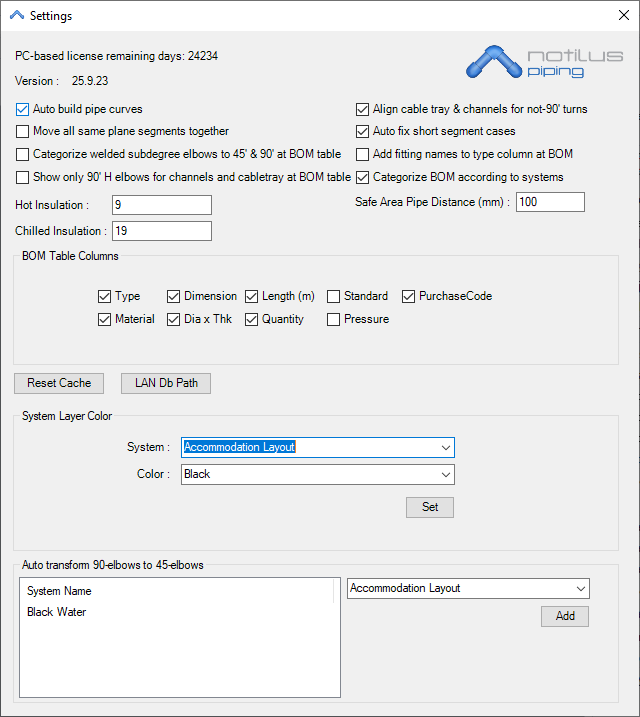
This page explains each option in the Piping settings dialog.
General
- Auto build pipe curves — Automatically reconstructs pipe centerlines where needed.
- Align cable tray & channels for not-90° turns — Keeps trays/channels orthogonal after non-right turns.
- Move all same plane segments together — Groups co-planar segments for consistent edits.
- Auto fix short segment cases — Heals tiny leftover pieces after routing operations.
- Categorize welded sub-degree elbows to 45° & 90° at BOM table — Normalizes elbow angles in BOM.
- Add fitting names to type column at BOM — Appends fitting names next to type for clearer reports.
- Show only 90° H elbows for channels and cabletray at BOM table — Filters to standard 90° H elbows.
- Categorize BOM according to systems — Splits BOM by system (HVAC, FW, BW, …).
- Hot / Chilled Insulation — Default insulation thickness (mm) for hot/chilled lines.
- Safe Area Pipe Distance (mm) — Clear distance enforced from safe areas during routing.
BOM Table Columns
Toggle which columns appear in generated BOMs:
- Type, Dimension, Length (m), Standard, PurchaseCode, Material, Dia × Thk, Quantity, Pressure
Utilities
- Reset Cache — Clears cached routing and BOM snapshots.
- LAN Db Path — Sets shared database path used by the team.
System Layer Color
- System — Choose the system (e.g., Accommodation Layout, Black Water…)
- Color — Pick display color for that system, then Set.
Auto transform 90° elbows to 45° elbows
Add systems to the list to automatically convert 90° elbows into 45° elbows during routing for those systems.
Questa pagina descrive ogni opzione della finestra impostazioni di Piping.
Generale
- Auto build pipe curves — Ricostruisce automaticamente le linee centrali delle tubazioni quando serve.
- Align cable tray & channels for not-90° turns — Mantiene vassoi/canaline ortogonali dopo curve non a 90°.
- Move all same plane segments together — Raggruppa segmenti complanari per modifiche coerenti.
- Auto fix short segment cases — Ripara piccoli segmenti residui dopo le operazioni di instradamento.
- Categorize welded sub-degree elbows to 45° & 90° at BOM table — Normalizza gli angoli delle curve (45°/90°) nella BOM.
- Add fitting names to type column at BOM — Aggiunge i nomi dei raccordi accanto al tipo per report più chiari.
- Show only 90° H elbows for channels and cabletray at BOM table — Mostra solo curve H 90° standard.
- Categorize BOM according to systems — Divide la BOM per sistema (HVAC, FW, BW, …).
- Hot / Chilled Insulation — Spessori isolante predefiniti (mm) per linee calde/fredde.
- Safe Area Pipe Distance (mm) — Distanza minima di sicurezza dalle aree “safe” durante l’instradamento.
Colonne della BOM
Attiva/disattiva le colonne mostrate nelle BOM generate:
- Type, Dimension, Length (m), Standard, PurchaseCode, Material, Dia × Thk, Quantity, Pressure
Utilità
- Reset Cache — Svuota la cache di routing e delle BOM.
- LAN Db Path — Imposta il percorso del database condiviso dal team.
Colore Layer per Sistema
- System — Seleziona il sistema (es. Accommodation Layout, Black Water…)
- Color — Scegli il colore di visualizzazione e premi Set.
Trasforma curve 90° in 45°
Aggiungi i sistemi nell’elenco per convertire automaticamente le curve a 90° in 45° durante l’instradamento.
 Notilus Piping